How to add a live cricket score overlay to OBS
🔒 Download OnAirHero only from onairhero.com/download. It isn’t sold by any other seller.
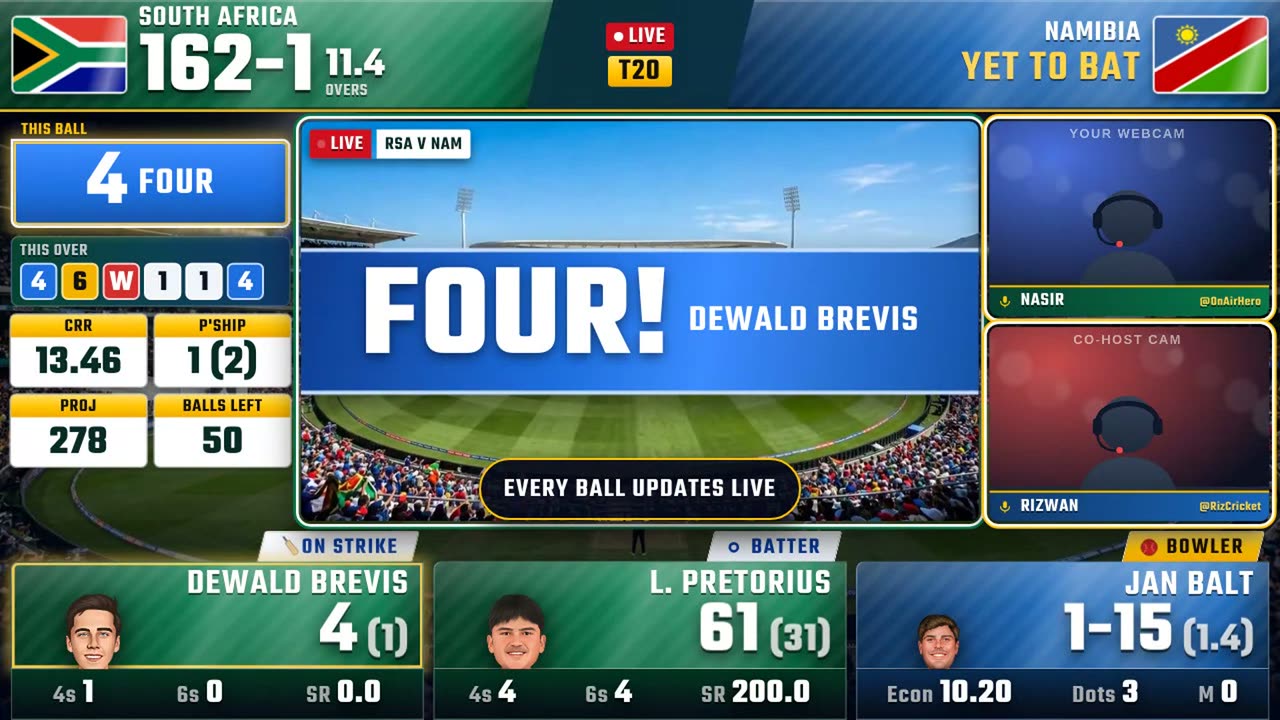
This guide puts a TV-style live cricket scoreboard on your OBS stream. It updates ball by ball by itself while you do the commentary. It takes about ten minutes the first time. You need a Windows or Mac computer, OBS Studio and Google Chrome.
- 1. Install OnAirHero
- 2. Pick a live match (Cricbuzz or Crex)
- 3. Add the score overlay to OBS
- 4. Add your webcam (optional)
- 5. Go live on YouTube, Facebook or TikTok
1. Install OnAirHero
- Download the right file
Go to onairhero.com/download (the only official download) and choose Windows, Mac · Apple Silicon (M1–M4 chips) or Mac · Intel. Not sure which Mac? Apple menu → About This Mac: “Chip: Apple M…” is Apple Silicon, “Processor: Intel” is Intel.
- Windows: run the installer
Right-click OnAirHero-Setup.zip in Downloads → Extract All, then run “OnAirHero Setup”. If a blue box says “Windows protected your PC”, click More info → Run anyway. Windows shows this for new apps it hasn’t seen many times yet.
- Mac: open it the first time
Open the .dmg and drag OnAirHero into Applications, then open it. The first time, macOS asks whether you want to open an app downloaded from the Internet: click Open. OnAirHero is signed and notarised by Apple, so that is the only question. If your Mac says it can’t be opened or isn’t supported, you downloaded the other chip’s file (Apple menu → About This Mac shows which you need). If it says “unidentified developer”, that copy didn’t come from onairhero.com: download it again from onairhero.com/download.
- Open OnAirHero
It starts in the Free edition: live scores, the Arena layout and one host cam. Pro customers click “Enter licence key” and paste their key (it’s in your account at my.onairhero.com and in our e-mail).
2. Pick a live match (Cricbuzz or Crex)
- Add the Chrome extension
The first-start guide in the app gives you the extension. Unzip it into a folder you will keep, open chrome://extensions in Google Chrome, turn on Developer mode (top right) and click “Load unpacked”. Pin it with the puzzle-piece icon so you can see it.
- Open the match in Chrome
On cricbuzz.com open Live Scores and click the match that is on now (its live commentary page), or on crex.com open the match’s live score page. Keep that tab open for the whole stream; it can stay in the background.
- Press “Stream this match”
The match appears as a card in OnAirHero (and in the extension). Click Stream this match. The deck’s top line turns to “Live scores: Updated” when balls start arriving.
3. Add the score overlay to OBS
- Set the canvas
In OBS: File → Settings → Video. Set Base (Canvas) and Output Resolution to 1920×1080 (or Output 1280×720 on a slower PC or connection) and FPS to 30.
- Make a scene
In the Scenes dock click + and name it “Live Match”.
- Add the overlay as a Browser source
In Sources click + → Browser and name it “OnAirHero Overlay”. URL: the overlay link at the top of the OnAirHero deck (http://localhost:4000/overlay). Width 1920, Height 1080. Untick “Shutdown source when not visible”. Click OK.
- Size and position it
Click the overlay in the preview, then right-click → Transform → Fit to screen (Ctrl+F / Cmd+F) so it fills the whole canvas. Keep it at the top of the Sources list, with your camera and any video below it.
4. Add your webcam (optional)
- Turn on OBS remote control once
In OBS open Tools → WebSocket Server Settings, tick Enable WebSocket server, click Show Connect Info and copy the password into OnAirHero’s Video & Cams tab, then click Connect.
- Add your camera in OBS
In your scene: Sources → + → Video Capture Device, name it “Cam 1” and choose your webcam. Keep it below the overlay in the Sources list.
- Link it
In OnAirHero click Cam 1 in the list. Your webcam jumps into the cam frame and moves with every scene change. Type your name and @handle for the name plate.
5. Go live on YouTube, Facebook or TikTok
- Connect OBS to your platform
File → Settings → Stream. For YouTube choose “YouTube - RTMPS” and Connect Account, or paste the stream key from YouTube Studio. Facebook and TikTok work the same way with their stream key.
- Check your mic
In the OBS Audio Mixer add Noise Suppression and a Compressor to your mic.
- Start streaming
Click Start Streaming. Test with an unlisted stream first. From now on every run, wicket and over updates on screen by itself.
If something isn't working
The overlay doesn't show in OBS
- Is OnAirHero open? The overlay comes from the app on your computer, so the app must be running while you stream.
- Check the link. The Browser source URL must be exactly the overlay link from the deck (http://localhost:4000/overlay), size 1920×1080. Open the link in Chrome: if you see the scoreboard there, the app is fine.
- Refresh it. Right-click the Browser source → Properties → Refresh cache of current page, or toggle its eye icon.
- Wrong size or cut off? Right-click it → Transform → Fit to screen, and make sure it is at the top of the Sources list.
The scores don't update
- Keep the match tab open in Chrome for the whole stream (it can be in the background). If you closed it, open it again and press Stream this match.
- Is the extension on? Check chrome://extensions. Its popup should show the match as connected.
- Chrome putting tabs to sleep? In Chrome Settings → Performance, add cricbuzz.com and crex.com to “Always keep these sites active”.
- Is the match actually live? Between innings, during breaks or rain the score doesn't change. The deck's top line shows when the last update arrived.
The stream buffers or hangs
- Usually it's the upload speed. Run a speed test: your upload should be at least 1.5× your OBS bitrate. 1080p needs about 4,500–6,000 Kbps; on a weaker connection use 720p at 2,500–3,500 Kbps (Settings → Output and Video).
- Check OBS's Stats (View → Docks → Stats). “Dropped frames (network)” means the internet; “Frames missed due to rendering lag” or high CPU means the computer.
- Use your graphics card to encode. Settings → Output → Video Encoder: NVIDIA NVENC, AMD, Intel QuickSync or Apple VT instead of x264.
- Close heavy apps and extra Chrome tabs while you stream; use a wired connection if you can.
- Downloaded it from another seller? Unofficial copies can be old or broken and are a common cause of hanging. Get the real app only from onairhero.com/download.
Other questions
- Camera in the wrong place? Keep the camera source below the overlay in OBS and click Connect again in Video & Cams.
- Worried about copyright? OnAirHero only draws the score graphics. Don't re-stream TV pictures or commentary you don't have the rights to. Talk over the match with your own camera and analysis.
Ready to try it?
Free download. Still stuck? We help on WhatsApp in English, Urdu or Hindi.
Prefer a printable copy with screenshots? Download the PDF guide.